
Download GifCam – Free Screen Recorder & GIF Creator for Windows
Looking for a lightweight, fast, and reliable way to turn your screen actions into animated GIFs? GifCam is a free software tool designed exclusively for Windows users who need to create small, shareable GIFs with ease. Whether you're crafting quick tutorials, documenting software bugs, or sharing fun clips on social media, GifCam simplifies the entire process.
With its minimal footprint and intuitive interface, this screen recording app captures everything within a customizable window—perfect for highlighting mouse movements, app interactions, or step-by-step guides. Unlike bulky recording software, GifCam runs directly from your desktop without installation, making it portable and ideal for use on any Windows PC via USB. It saves recordings as both AVI and animated GIF files, ensuring compatibility across platforms.
Best of all, it’s completely free with no hidden fees or ads. If you're searching for a secure, fast, and efficient GIF maker, GifCam delivers exactly what you need—no compromises.
Why GifCam Stands Out Among Free GIF Tools
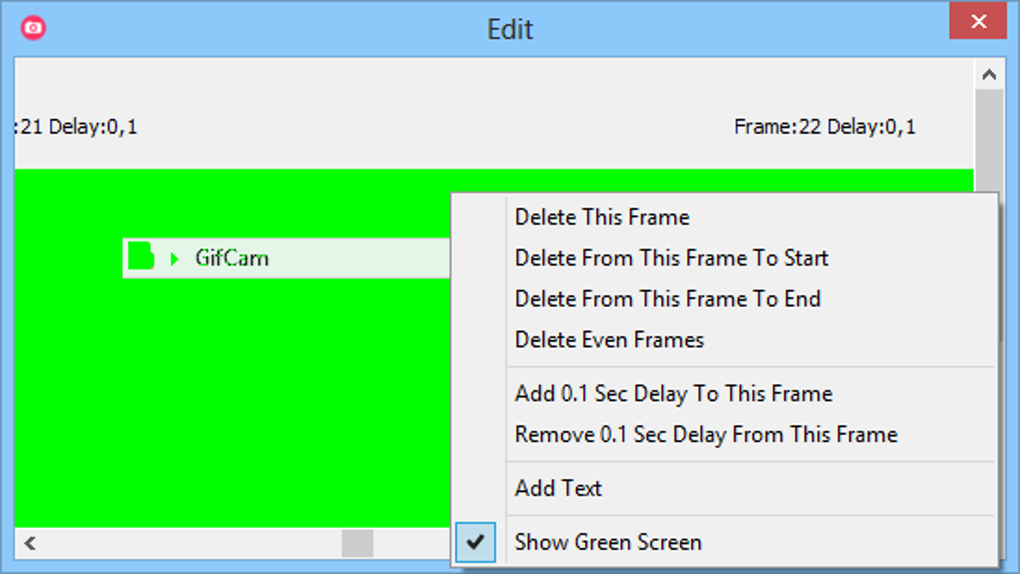
GifCam has carved a niche for itself in the world of screen recording and animation tools, especially for users who value simplicity and speed. Unlike complex video editors or bloated software suites, GifCam focuses on one core function: turning screen activity into high-quality, compact GIFs. The app launches instantly after download—no installation required—making it a go-to choice for quick tasks. Its portable nature means you can carry it on a USB drive and use it on any Windows machine without leaving traces. This is especially useful for IT professionals, educators, and content creators who work across multiple devices. The interface is refreshingly minimal: a transparent window that defines your recording area, with a single record button and a few essential controls. You can resize the capture zone with ease, choose whether to include cursor movements, and adjust recording speed before saving. One standout feature is the ability to preview your GIF before finalizing, allowing you to spot errors and make adjustments. You can also edit individual frames, add text overlays, delay frames, or compress redundant frames to reduce file size. These editing tools are powerful yet accessible, even for beginners. The output quality remains impressive, with GIFs staying under 1MB for short clips—perfect for email, forums, or social media. Plus, the AVI format support ensures compatibility with all major media players. Whether you're troubleshooting a software issue, creating a tutorial, or sharing a funny moment, GifCam delivers results faster than most alternatives.How to Use GifCam: Step-by-Step Guide
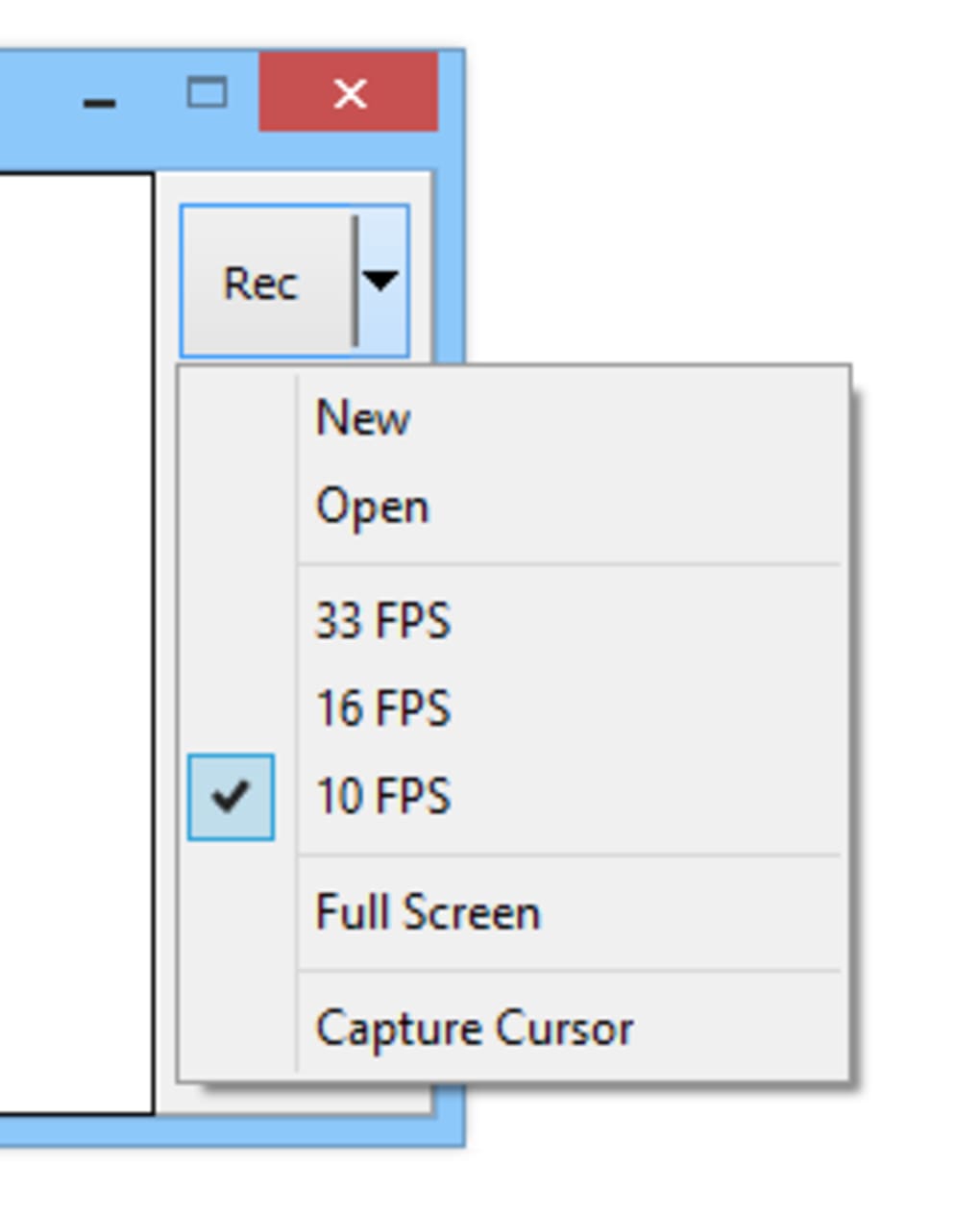
Using GifCam is designed to be as simple as possible. First, download the lightweight 700KB executable file from the official site. Since it’s a portable app, just extract the file and run GifCam.exe—no setup needed. Upon launching, you’ll see a semi-transparent window that defines your recording area. Drag the corners to resize it to match the screen portion you want to capture. For full-screen recording, select the “Full-Screen” option from the menu. If you want to highlight mouse movements, click the “Capture Cursor” button to enable it. Once everything is set, click the red record button. The app starts capturing everything inside the window in real time. When you’re done, click the stop button. Before saving, you can preview the animation, adjust the frame rate, or even edit specific frames. You can also add text labels to key frames for better clarity. The tool allows you to save your creation as either an AVI video or an animated GIF. For social sharing, the GIF format is ideal due to its small size and universal support. If you make a mistake, simply click the arrow next to the record button to restart the recording—your previous attempt is automatically cleared. This undo feature makes the process stress-free. After saving, you can further edit the GIF by opening it in the built-in frame editor. This level of control is rare in free tools. With its straightforward workflow, GifCam empowers users of all skill levels to create professional-grade animated content in minutes.Key Features & Benefits of GifCam
GifCam may be simple, but it packs a punch with essential features that elevate its usability. Here’s what makes it a top choice among free screen recording tools:- Portable & Lightweight – Only 700KB in size; runs directly from USB or local drive without installation.
- Real-Time Screen Capture – Records mouse movements, clicks, and on-screen actions with precision.
- Frame-by-Frame Editing – Open and edit individual frames to refine your GIF before saving.
- Text Overlay Support – Add captions or labels to specific frames for better explanation.
- Adjustable Frame Rate – Control animation speed to balance quality and file size.
- Automatic Frame Compression – Removes duplicate frames to keep files small and efficient.
- Preview Before Saving – Watch your GIF before finalizing to avoid errors.
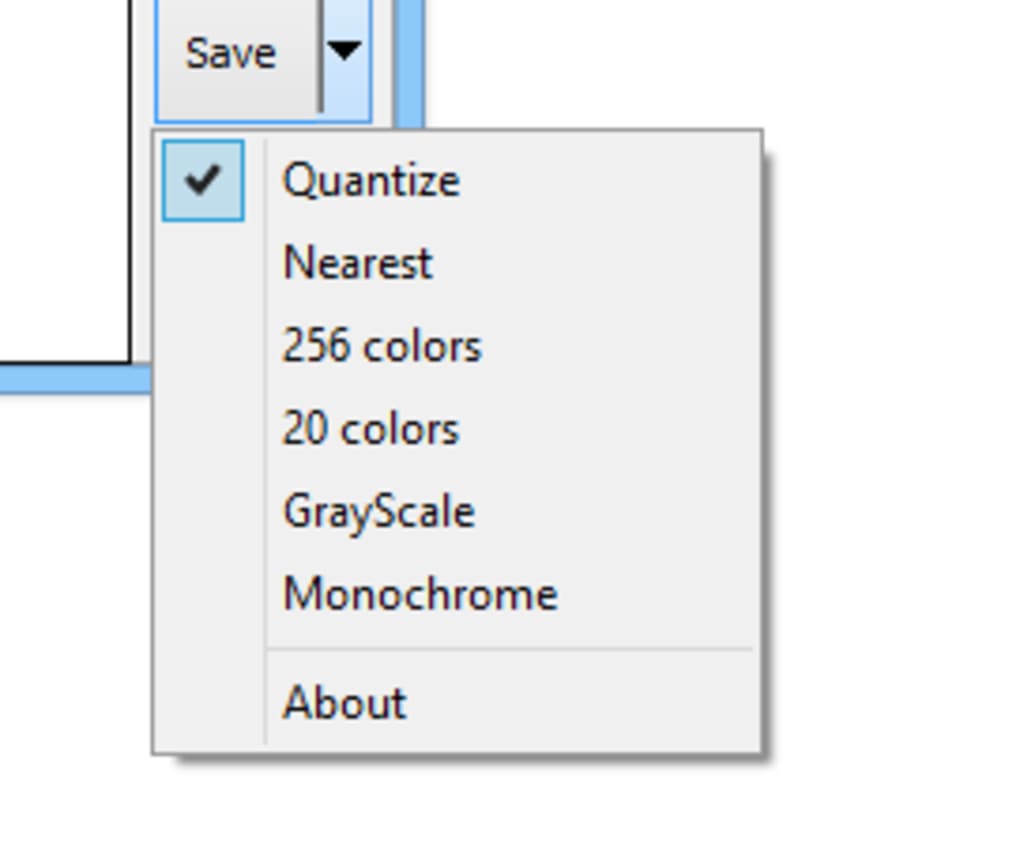
- Multiple Output Formats – Save as AVI or animated GIF for maximum compatibility.
- Cursor Capture – Highlight mouse movements with a visible pointer for tutorials.
- No Ads or Watermarks – Completely free, secure, and ad-free experience.
Pros and Cons at a Glance
- Pros:
- Free to download and use with no hidden costs
- Extremely lightweight (only 700KB)
- Portable – runs from USB without installation
- Simple, intuitive interface perfect for beginners
- Supports both AVI and GIF output formats
- Frame-by-frame editing and text overlay tools
- Automatic compression reduces file size
- Secure and ad-free environment
- Cons:
- Windows-only – no Mac, iOS, or Android support
- Limited to screen recording; no audio capture
- No built-in sharing options (requires external apps)
- Basic editing tools—advanced users may need more
Frequently Asked Questions (FAQ)
-
Is GifCam really free to use?
Yes, GifCam is completely free to download and use. There are no ads, subscriptions, or hidden fees. It’s an open-source tool developed by Bahrani Apps and available for public use.
-
Can I use GifCam on Mac or Linux?
No, GifCam is designed exclusively for Windows operating systems. It does not support Mac, Linux, iOS, or Android devices.
-
Does GifCam support audio recording?
No, GifCam does not capture audio. It only records visual screen activity and mouse movements.
-
How do I edit my GIF after recording?
After saving, you can open your GIF in GifCam’s built-in frame editor. Here, you can view each frame individually, delete or delay frames, add text, and adjust timing before re-saving.
-
What’s the best file format for sharing GIFs?
For social media and web use, the GIF format is ideal due to its universal compatibility. For higher quality or larger files, AVI is recommended.
Final Verdict: Should You Download GifCam?
If you're a Windows user in need of a fast, reliable, and free tool to create animated GIFs from screen recordings, GifCam is an excellent choice. Its lightweight design, ease of use, and powerful editing features make it perfect for educators, IT support staff, and casual users alike. While it lacks audio support and is limited to Windows, its strengths far outweigh its limitations. Whether you're creating step-by-step guides, documenting bugs, or sharing fun moments online, GifCam delivers high-quality results in seconds. With no installation, no ads, and full portability, it’s one of the most secure and efficient GIF tools available. Don’t miss out—download GifCam today and start turning your screen actions into engaging animated content with ease.Download GifCam now and simplify your screen recording workflow!







